
How to transfer files from iPhone to a Windows 11 PC without a cable
Short answer
Open PocketTransfer on your iPhone and tap Start. On the PC, open the address it shows in Chrome or Edge, type the 8-digit code, then tap Approve on the iPhone.
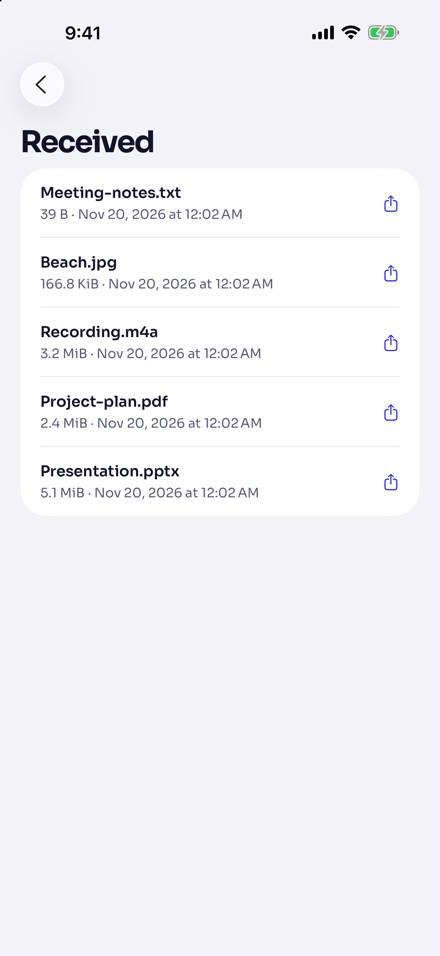
Files from the iPhone are saved by the browser on the PC, usually in the Downloads folder. Files from the PC appear in Received on the iPhone.
Tested with
- November 21, 2026: a tester used PocketTransfer with Chrome on a PC and reported that it works the same as on a Mac.
- November 20, 2026: the iPhone steps and the browser page were tested with Chrome on a Mac. The screenshots on this page come from that test.
- Edge on Windows 11: not tested yet.
What you need
- An iPhone with iOS 18.6 or later, with PocketTransfer.
- A Windows 11 PC with Chrome or Edge, the latest major version or the one before it. Nothing to install on the PC.
- Both on the same Wi-Fi network, ideally a private one you trust.
- PocketTransfer open on the iPhone until the transfer finishes.
No cable, no iTunes, no cloud
PocketTransfer works over your own Wi-Fi. You do not need a USB cable, iTunes or the Apple Devices app, an account, or a cloud service: the files go straight from the iPhone to the browser on the PC, and back.
Steps
-
Open PocketTransfer and tap Start
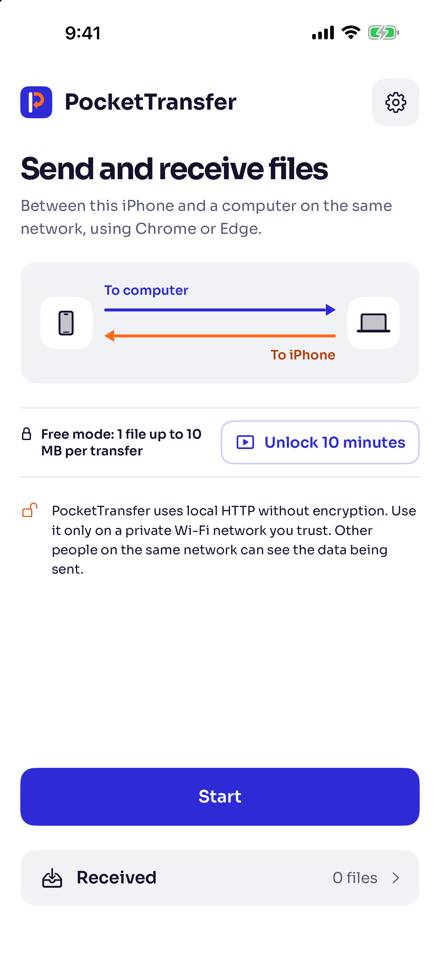
On the iPhone, open PocketTransfer and tap Start.
-
Open the address on the PC
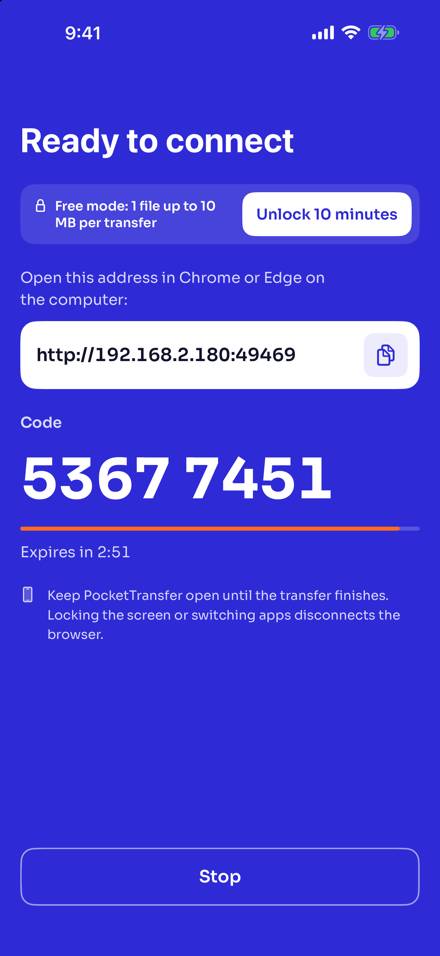
The iPhone shows Ready to connect, with an address and an 8-digit code. On the PC, open Chrome or Edge and type the address into the address bar exactly as shown.
-
Type the code, then tap Approve
Type the 8-digit code on the page. Check that it matches the code on the iPhone, then tap Approve on the iPhone. The page then shows Connected to iPhone.
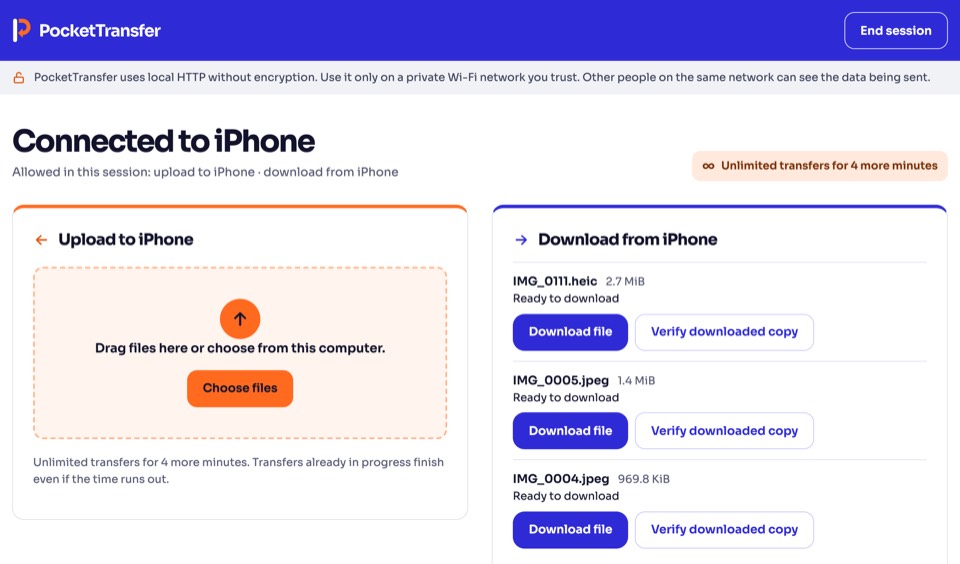
The page in the browser. This screenshot is from Chrome on a Mac; the page is the same in Chrome on a PC. -
Send files from the iPhone to the PC
To computer
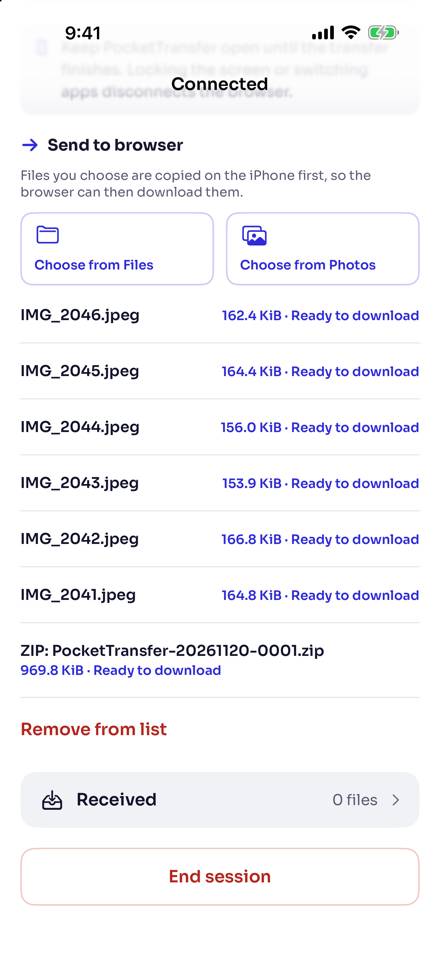
On the iPhone, under Send to browser, tap Choose from Photos or Choose from Files. In the browser, download each file, or download them all as one ZIP.
-
Send files from the PC to the iPhone
To iPhone
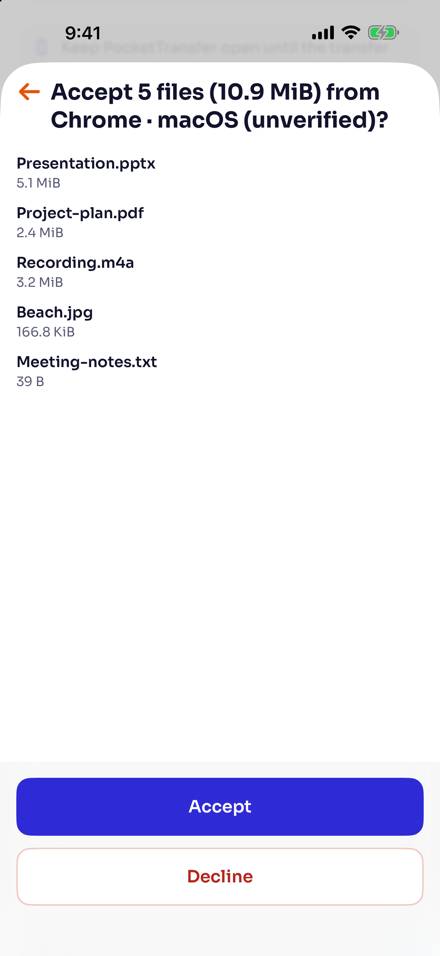
In the browser, drag files onto Upload to iPhone, or click Choose files. Your iPhone asks before anything is saved: tap Accept. The iPhone names the browser that sent the files; the screenshot below was taken with a Mac.
Check the result
On the PC, files from the iPhone are in the folder where Chrome or Edge saves downloads, usually Downloads. If you downloaded a ZIP, right-click it in File Explorer and choose Extract All. Live Photos arrive as their photo and their video.
Limits
- Free mode sends 1 file up to 10 MB per transfer. Watch a short ad to unlock unlimited transfers for 10 minutes, up to 1,000 files per transfer; the ad needs an internet connection. Premium is a one-time purchase (US$4.99 in the United States) that removes ads and the free-mode limits.
- PocketTransfer uses local HTTP without encryption. Use it only on a private Wi-Fi network you trust.
- Keep PocketTransfer open until the transfer finishes. Locking the screen or switching apps disconnects the browser.
Troubleshooting
- The page does not open. Check that the iPhone still shows Ready to connect, that you typed the latest address, and that both devices are on the same network. Guest networks often keep devices apart, and a VPN or a firewall on the PC can block the connection.
- The browser disconnected. Locking the screen or switching apps disconnects the browser. Go back to PocketTransfer and connect again.
- You use another browser. Other browsers are not tested in this release. The page tells you so, and you can still try.
More help:
Related pages

Last updated