
How PocketTransfer works, step by step
Short answer
Your iPhone shows an address and an 8-digit code. Open the address in Chrome or Edge on your computer, type the code, and tap Approve on the iPhone. Then send files either way over your Wi-Fi.
Files from the iPhone go where your browser saves downloads, usually the Downloads folder. Files from the computer appear in Received on the iPhone.
What you need
- An iPhone with iOS 18.6 or later, with PocketTransfer.
- A computer with Chrome or Edge. Nothing to install on the computer, no account.
- Both on the same local network. See which iPhones, computers and browsers work.
Connect in three steps
-
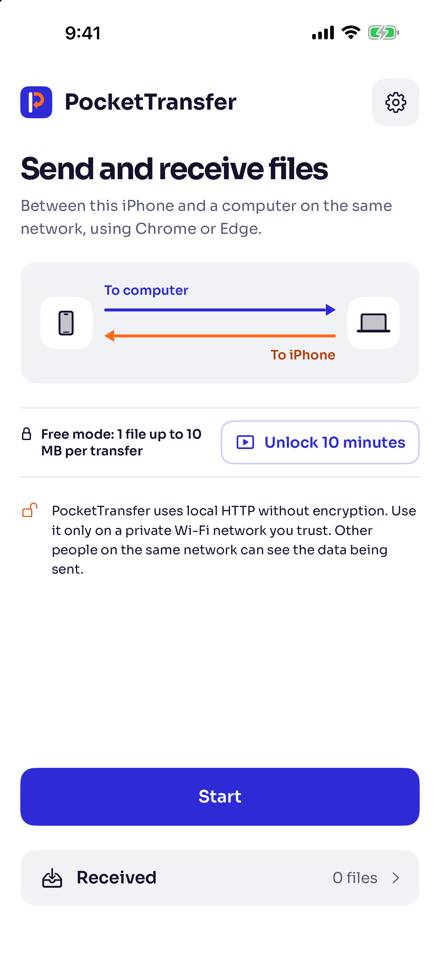
Open PocketTransfer and tap Start
On the iPhone, open PocketTransfer and tap Start. Nothing needs to be installed on the computer.
-
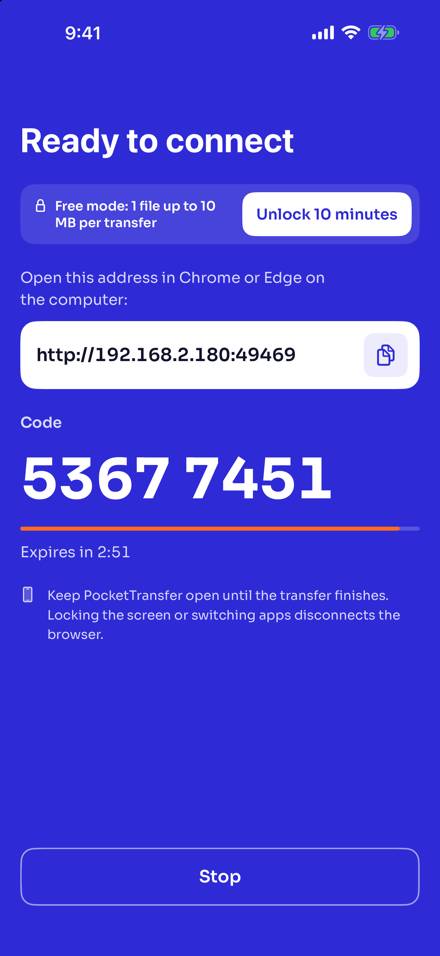
Open the address in Chrome or Edge
The iPhone shows Ready to connect, with an address and an 8-digit code. On the computer, open Chrome or Edge and type the address into the address bar exactly as shown, for example http://192.168.2.180:49469.
-
Type the 8-digit code, then tap Approve
Type the code on the page. Check that it matches the code on the iPhone, then tap Approve on the iPhone. Each computer needs your approval. The page then shows Connected to iPhone.
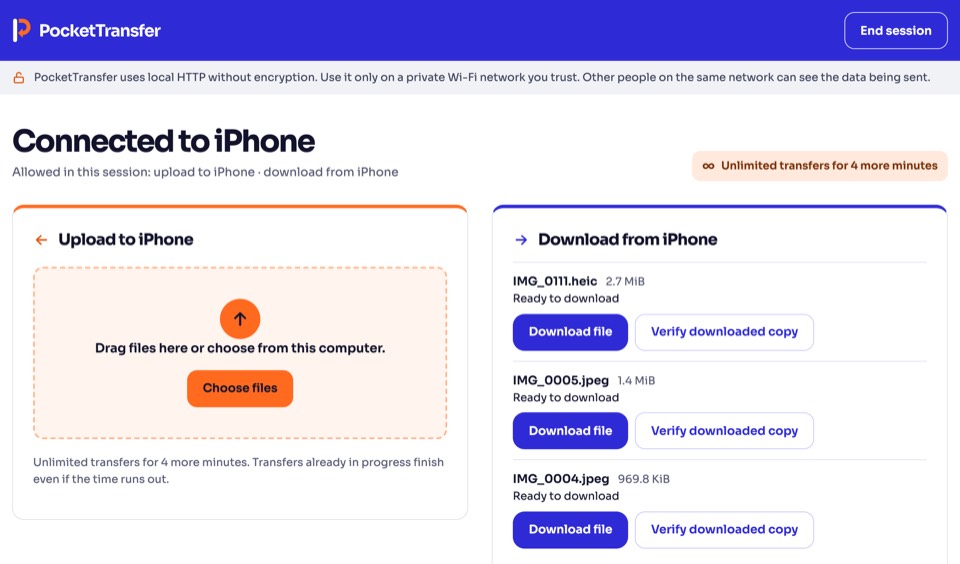
The page in the browser on the computer.
Send files either way
Send photos and files to the computer
To computer
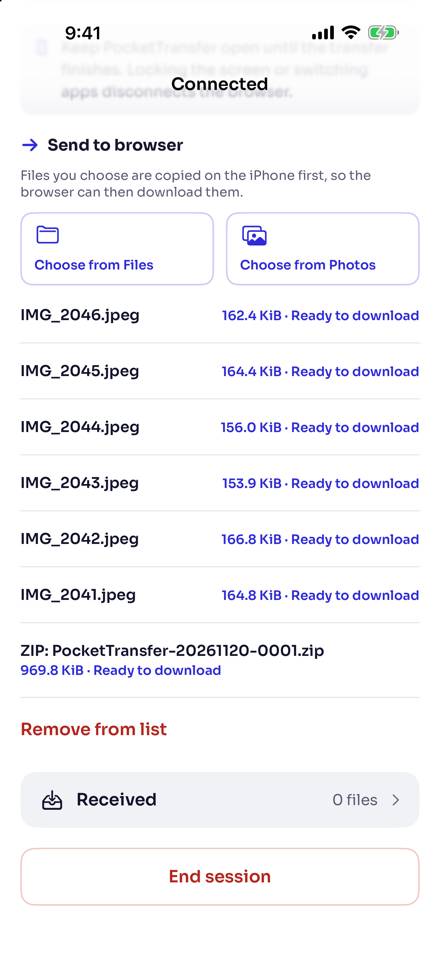
On the iPhone, under Send to browser, tap Choose from Photos or Choose from Files. In the browser, download each file one by one, or download them all as one ZIP. Live Photos arrive as their photo and their video.
Send files to the iPhone
To iPhone
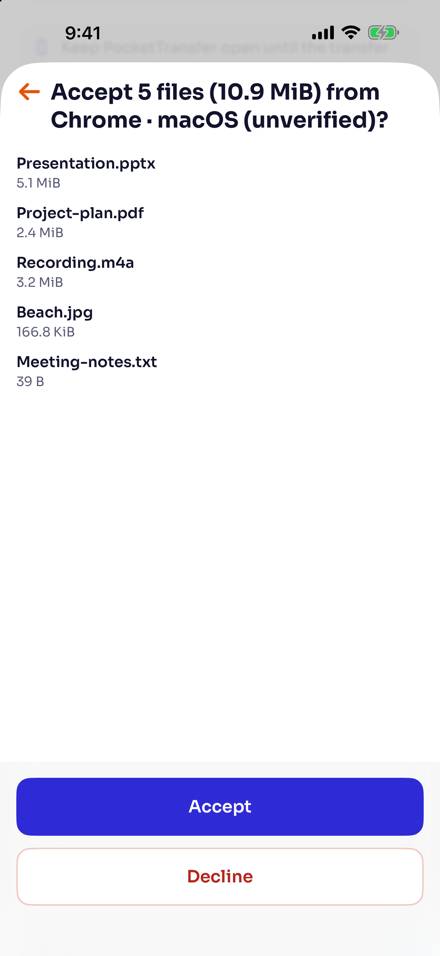
In the browser, drag files onto Upload to iPhone, or choose them on the computer. Your iPhone asks before anything is saved: tap Accept to save them, or Decline.
Check where the files ended up
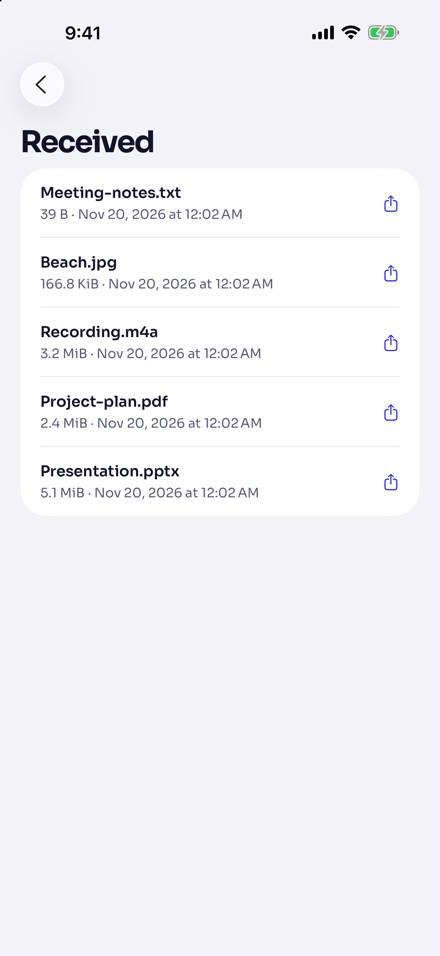
On the computer, files from the iPhone are in your Downloads folder, or wherever Chrome or Edge saves downloads. On the iPhone, files from the computer are in Received, where you can share or save them.
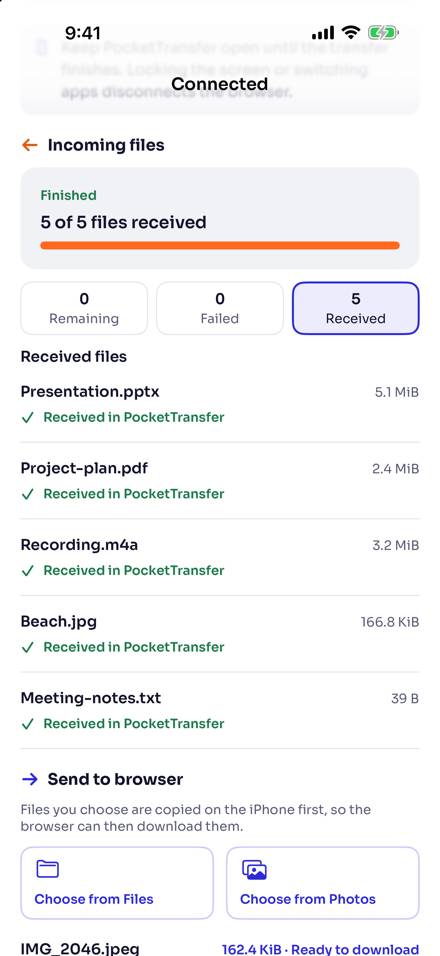
The iPhone also shows how many files arrived, how many are left, and which ones failed.
While it runs
- Keep PocketTransfer open on the iPhone until the transfer finishes. Locking the screen or switching apps disconnects the browser.
- Free mode sends 1 file up to 10 MB per transfer. See free mode, the 10-minute unlock and Premium.
- PocketTransfer uses local HTTP without encryption, so use it only on a private Wi-Fi network you trust. Read how PocketTransfer handles security.
- Trouble connecting? See connection help and how to contact support.
Related pages

Last updated